- Home Page /
- Electronics /
- Computers, Laptops and Tablets /
- Computer Software for Home & Office /
- Photo, Video & Music Editing Software /
- ClearClick VHS to DVD Wizard Software with US...
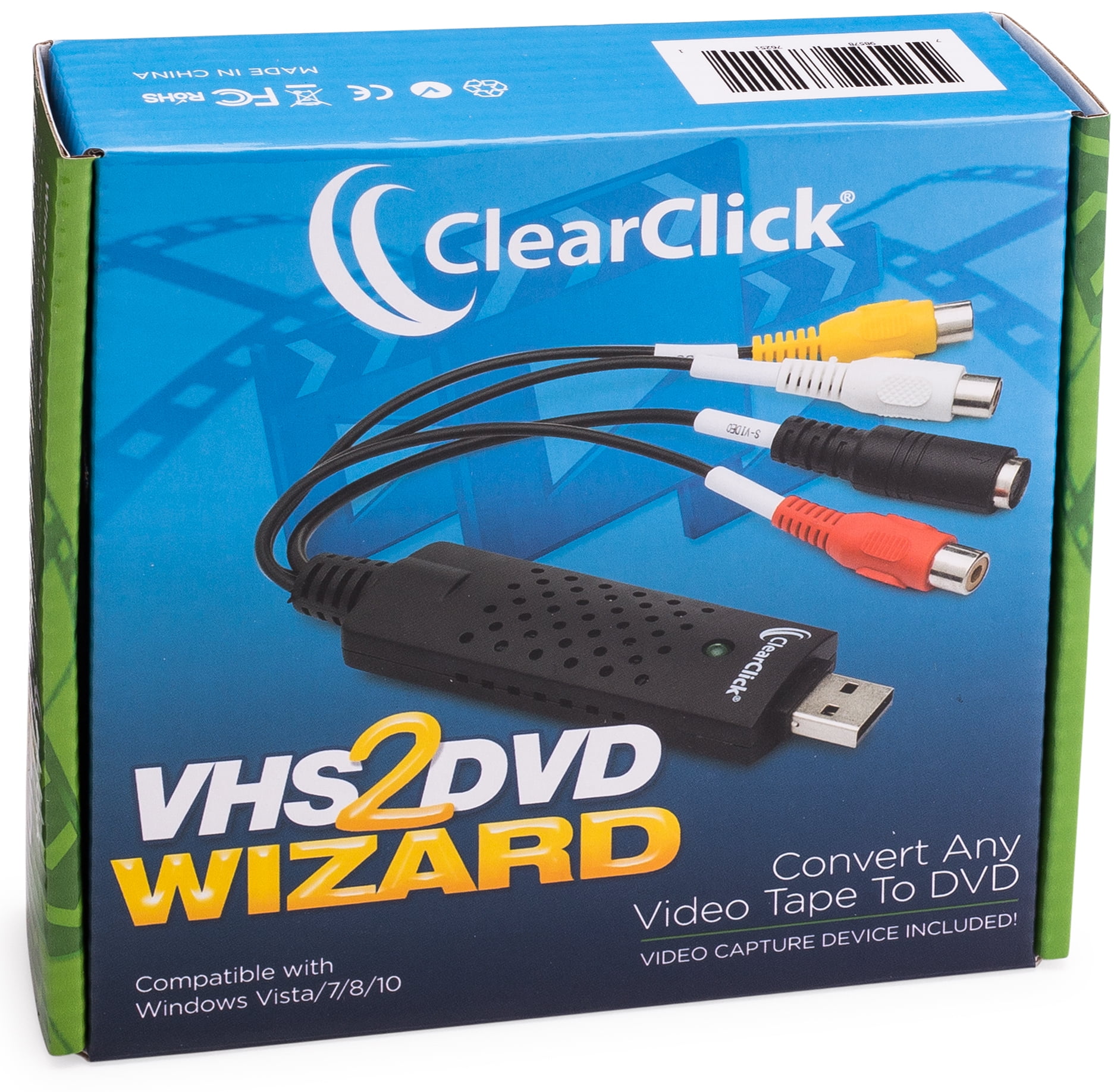


ClearClick VHS to DVD Wizard Software with USB Video Capture Device (DVD)
81% of respondents would recommend this to a friend
 Imported from USA store

Ubuy works hard to protect your security and privacy. Our advanced payment security system ensures confidentiality by encrypting your information during transmission using AES (Advanced Encryption Standards) and SSL (Secure Socket Layer) protocols. Your payment details are 100% secure as we do not share your payment details with third party sellers.


Fast
Shipping

Free
Return*

Secure Packaging

100% Original Products

PCI DSS Compliance

ISO 27001 Certified





Product Details
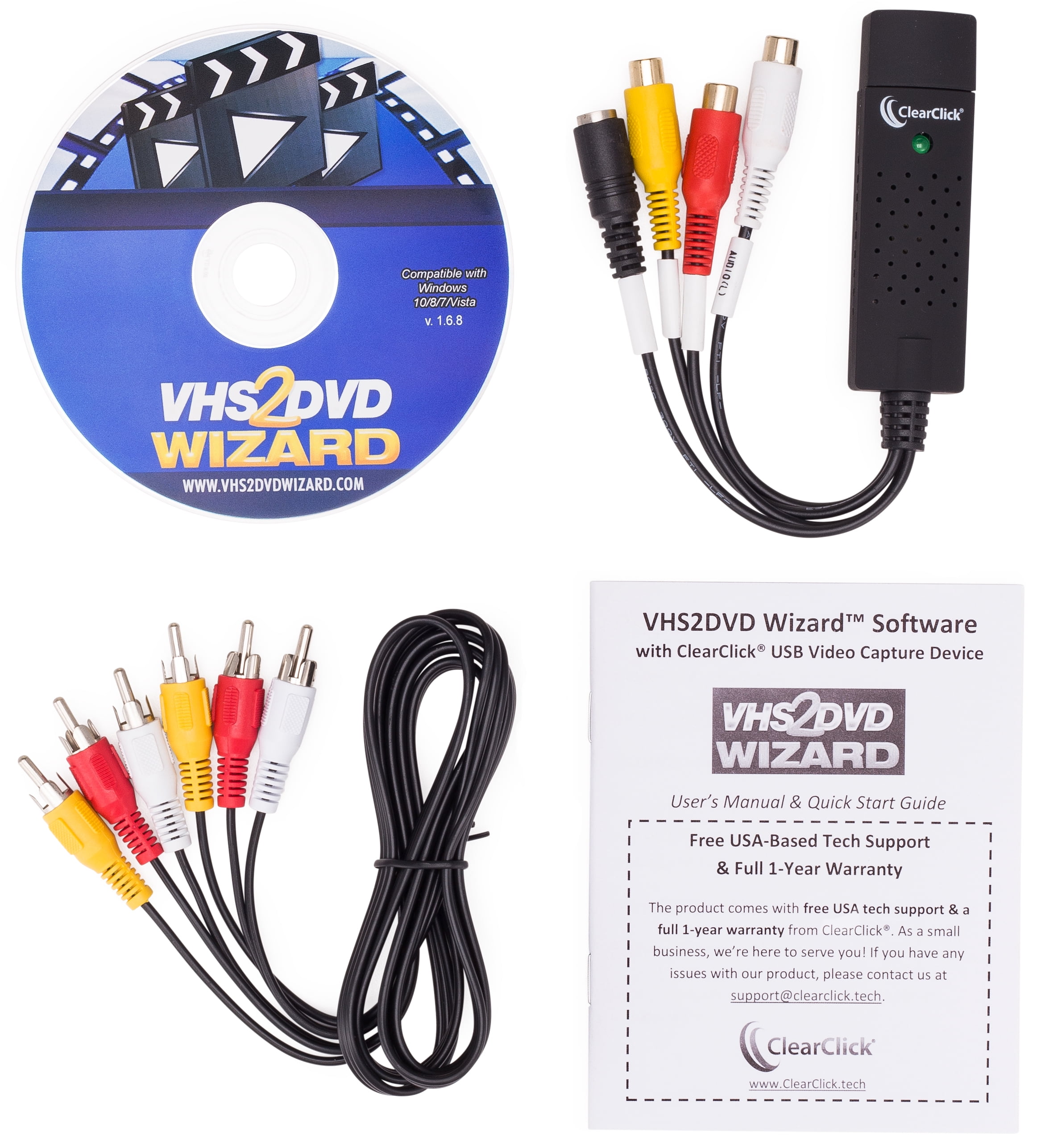
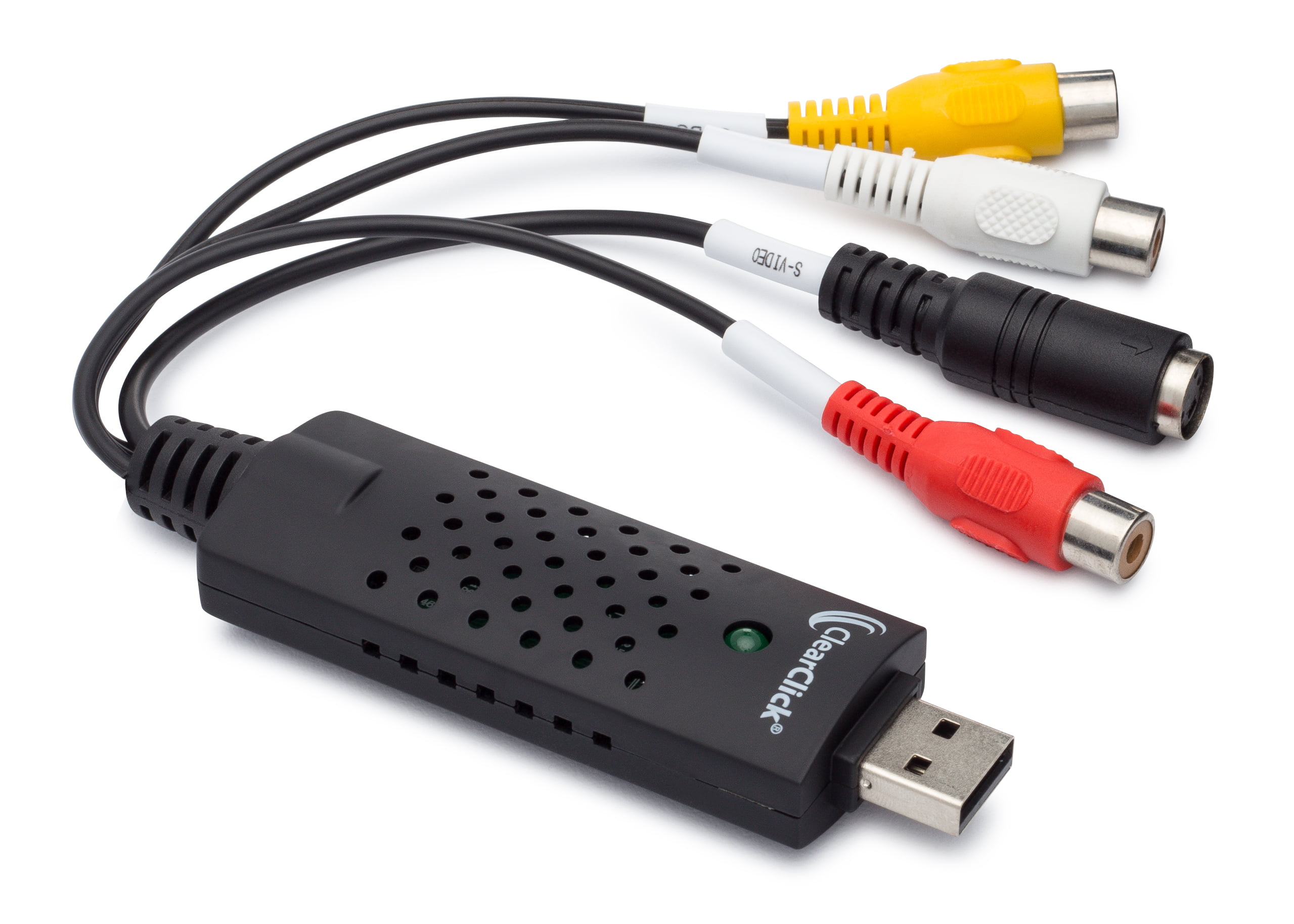
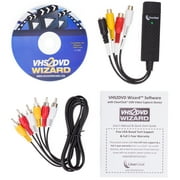
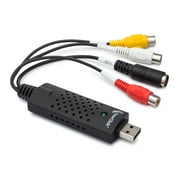
- Got a box of old video tapes in your closet or basement? Turn them into DVD or digital video file!The VHS To DVD Wizard software from ClearClick makes this easy by providing you with a step-by-step, wizard software format. Plus, there's a simple user's manual (included in digital PDF format on the CD) that you can actually understand, because it's written in everyday language! Here's how this conversion system works.Step #1: Install the ClearClick VHS To DVD Wizard Software.Just insert the software CD to install the VHS To DVD Wizard and associated driver files.Step #2: Plug in the ClearClick USB Video Grabber.Plug in the included ClearClick USB Video Grabber into your PC. Your computer will install it automatically.Step #3: Connect Your VCR.Connect your VCR to your USB video grabber with an RCA audio/video cable, and start playing a VHS tape in your VCR. Note: a VCR and RCA audio/video cable are not included.Step #4: Capture Your Video.Click Capture in the software and your video will start transferring to your computer! You can either capture your video to a digital video file on your computer so that you can edit it, or you can burn your video directly to DVD as you capture it.Step #5: Edit and Burn Your Video To DVD.After optionally editing your video with the software to remove unwanted portions, simply burn it to DVD with the Create DVD section. You're done!Finally, as a ClearClick customer, you get access to top-quality, USA-based technical support. Unlike other companies with outsourced tech support or support you have to pay for, ClearClick's top-notch tech support is free and USA-based.SYSTEM REQUIREMENTS:Windows 10/8/7/Vista2.0 GHz Dual Core processor or better recommended2-4 GB RAM or higherDVD burner & Blank DVD-R discs15 GB or more of free hard disk spaceVCR video tape player or camcorder (to play your tapes)
| Computer Software Type | Image, Video & Audio Software |
| Operating System | Windows |
| Brand | ClearClick |
| Number of Users | 1 |
| Delivery Method | Ship to Home |
| Physical Media Format | DVD |
| Version | 1.6.8 |
| Model | VHS2DVD168 |
| Manufacturer | ClearClick |
| Has Written Warranty | No |
| Item Weight | 1.5 lbs (680 grams) |
Product Description
ClearClick VHS to DVD Wizard Software with USB Video Capture Device (DVD)
Important information
- Limitations : For products shipped internationally, please note that any manufacturer warranty may not be valid; manufacturer service options may not be available; product manuals, instructions, and safety warnings may not be in destination country languages; the products (and accompanying materials) may not be designed in accordance with destination country standards, specifications, and labeling requirements; and the products may not conform to destination country voltage and other electrical standards (requiring use of an adapter or converter if appropriate). The recipient is responsible for assuring that the product can be lawfully imported to the destination country. When ordering from Ubuy or its affiliates, the recipient is the importer of record and must comply with all laws and regulations of the destination country.
- Not all the products listed on Ubuy are for sale, as Ubuy is a global search engine. Products are subject to export/trade regulations.
Currently unavailable.
We don't know when or if this item will be back in stock.
This item is not restrict in my country.(Please click on above link if this item is not restrict in your country, So our team will review and allow.)
PCI DSS compliant and ISO 27001:2022 certified, with encrypted payments and full buyer protection on every order.
Ubuy Assurance
Experience worry-free shopping with 100% original products, PCI DSS-compliant payment security, ISO 27001-certified data protection, the fastest cross-border delivery, free returns *, and secure packaging on every order.